Your process has more steps than Odoo
An Odoo sales order is a quotation, a sent quotation, a sales order or cancelled. A real sales team talks differently: to be priced, waiting for the site visit, waiting for the deposit, released to production. Those are the words used in meetings and on the phone with customers. Odoo can follow that process, as our logistics and manufacturing page puts it, without giving up its own states.
Most companies end up with one of two bad options. The team learns to translate in their heads, and three different situations end up hidden behind the same Odoo state. Or someone replaces Odoo's states with custom ones, which breaks invoicing, standard reports and the next upgrade.
The gap is sharpest when an order needs approval. An €80,000 order should not go to production like an €800 one. Standard Odoo has nothing between "quotation sent" and "sales order": once confirmed, deliveries and invoicing open up.
The same button, two routes
With our flow modules, the company defines its own steps and declares how each one connects to Odoo's standard buttons. Users keep clicking the buttons they know. The order moves through the company's steps, and the Odoo state underneath follows, or deliberately does not.
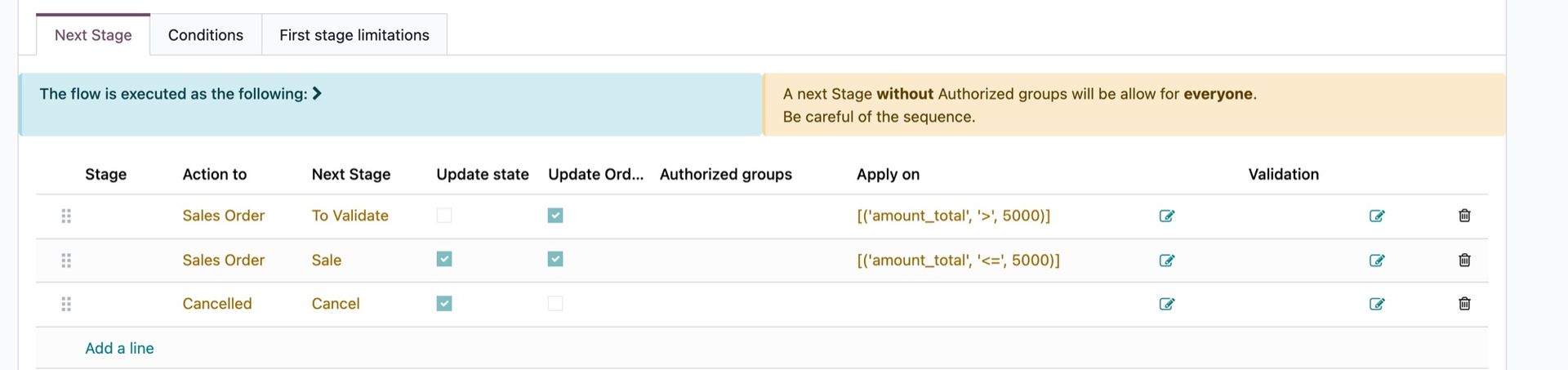
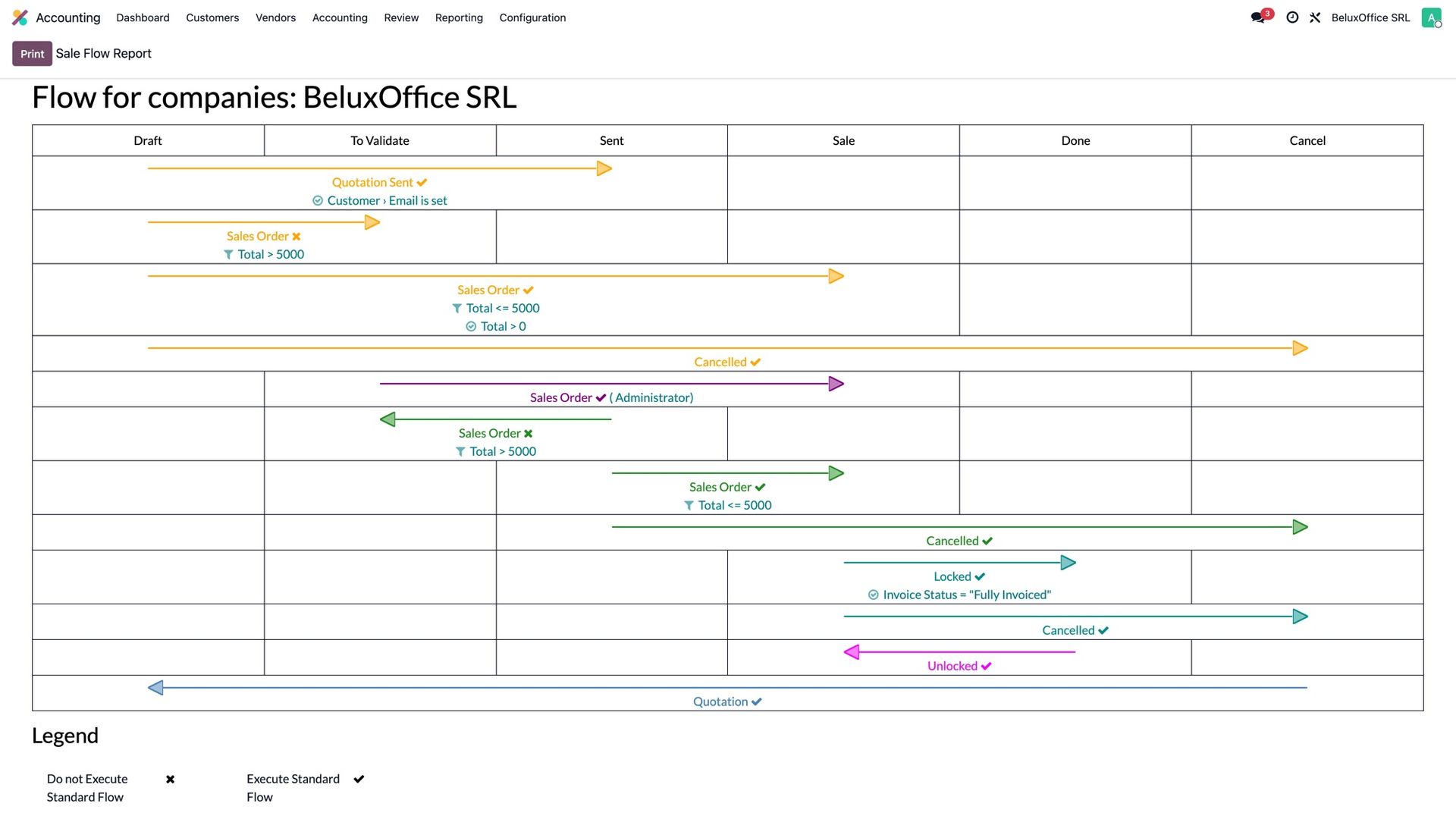
Take the most common rule. From a sent quotation, Confirm leads to To Validate when the total is above €5,000, and straight to Sale below that. The condition is written with Odoo's usual filter editor, on any field of the order: amount, customer, country, sales team, product family. The same mechanism can give project sales and trading sales two different routes in the same database.
A lock that Odoo holds for you
The transition to To Validate is set not to update the Odoo state. The order shows To Validate on screen, but for Odoo it is still a quotation. So nobody can invoice it or deliver it until someone approves it. The lock does not rely on people respecting a label. Odoo's own mechanics hold it.
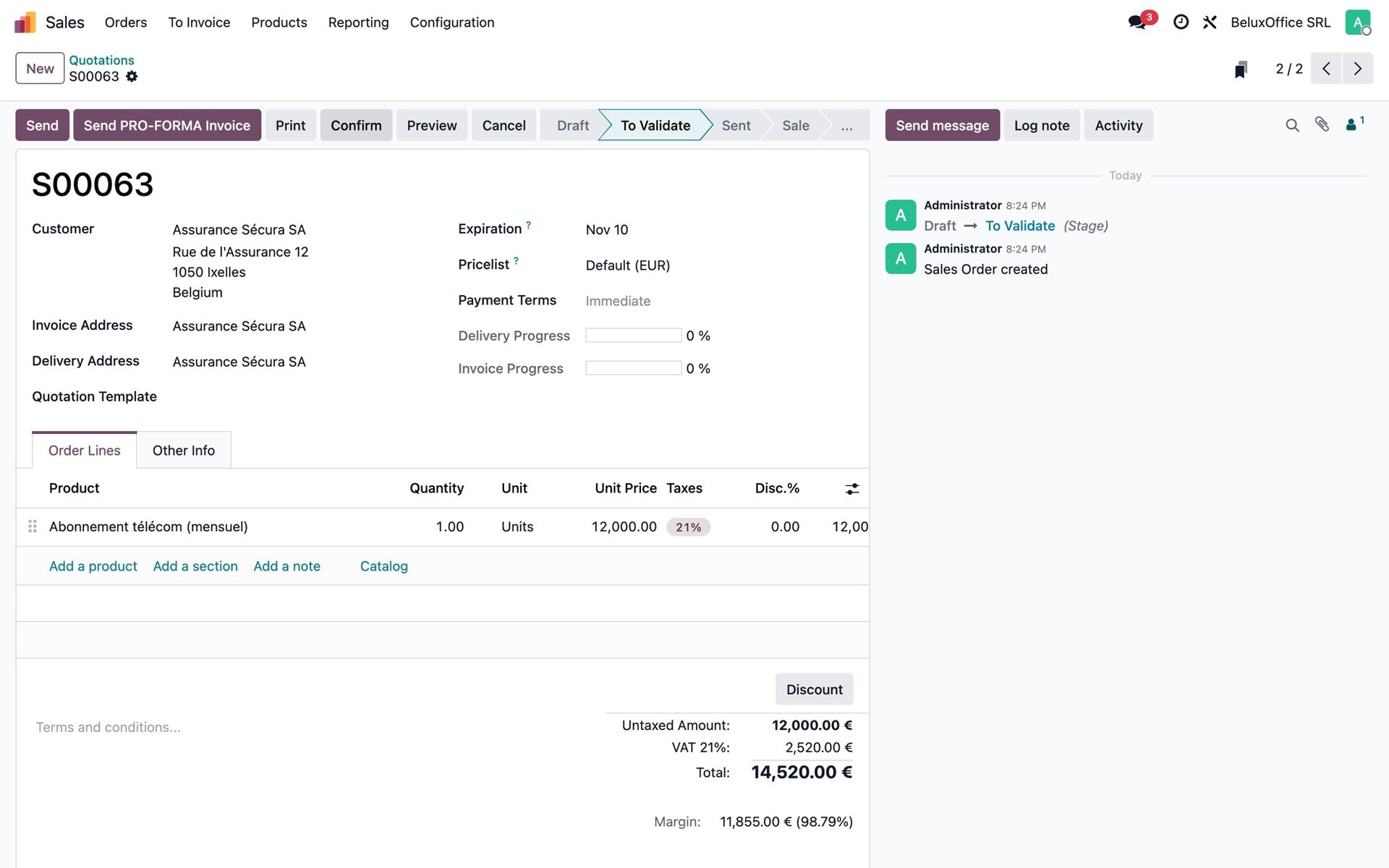
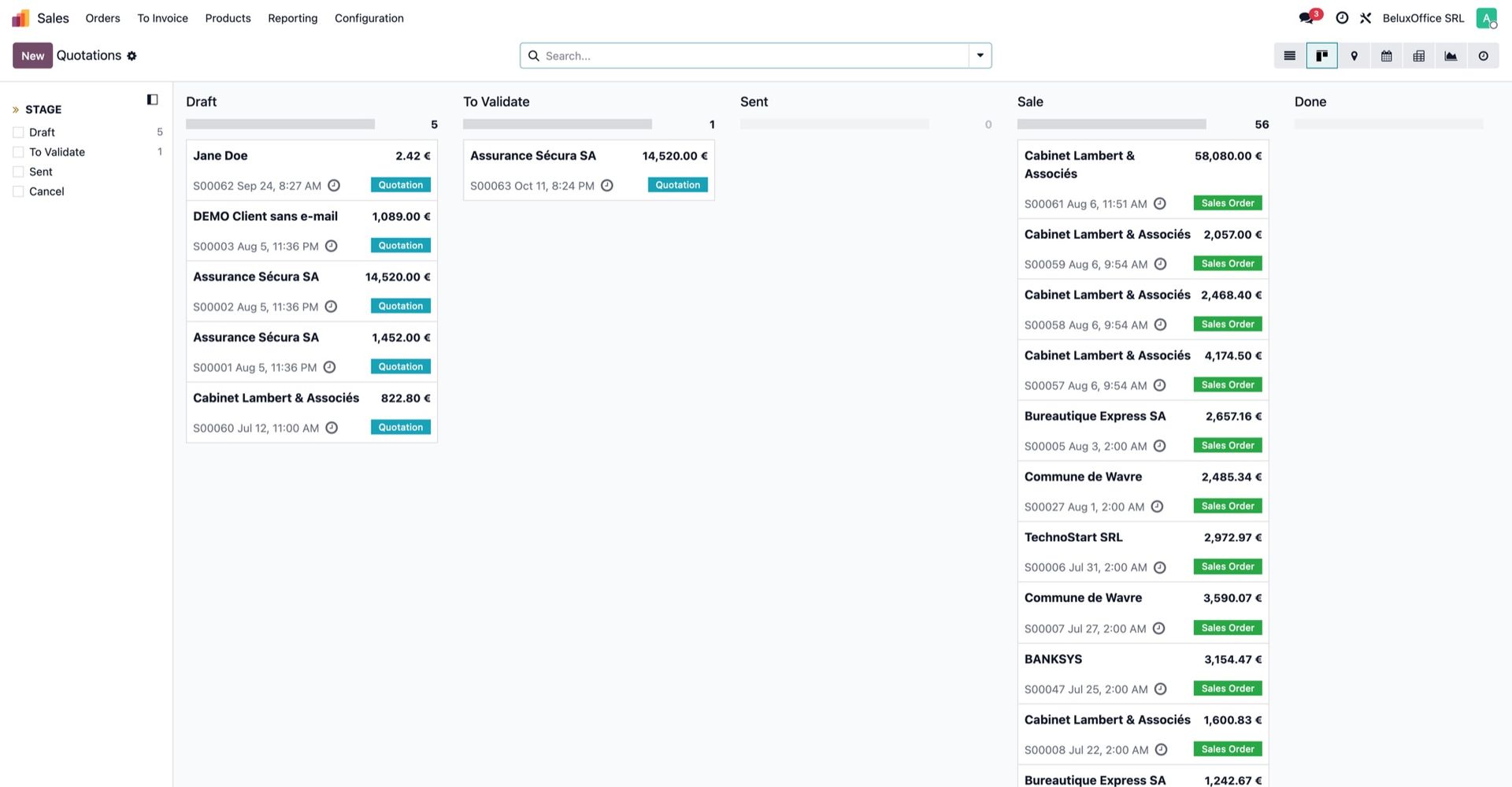
In the kanban, the column is the company's step and the badge on the card is Odoo's state. Both are visible at a glance.
Rules that explain themselves
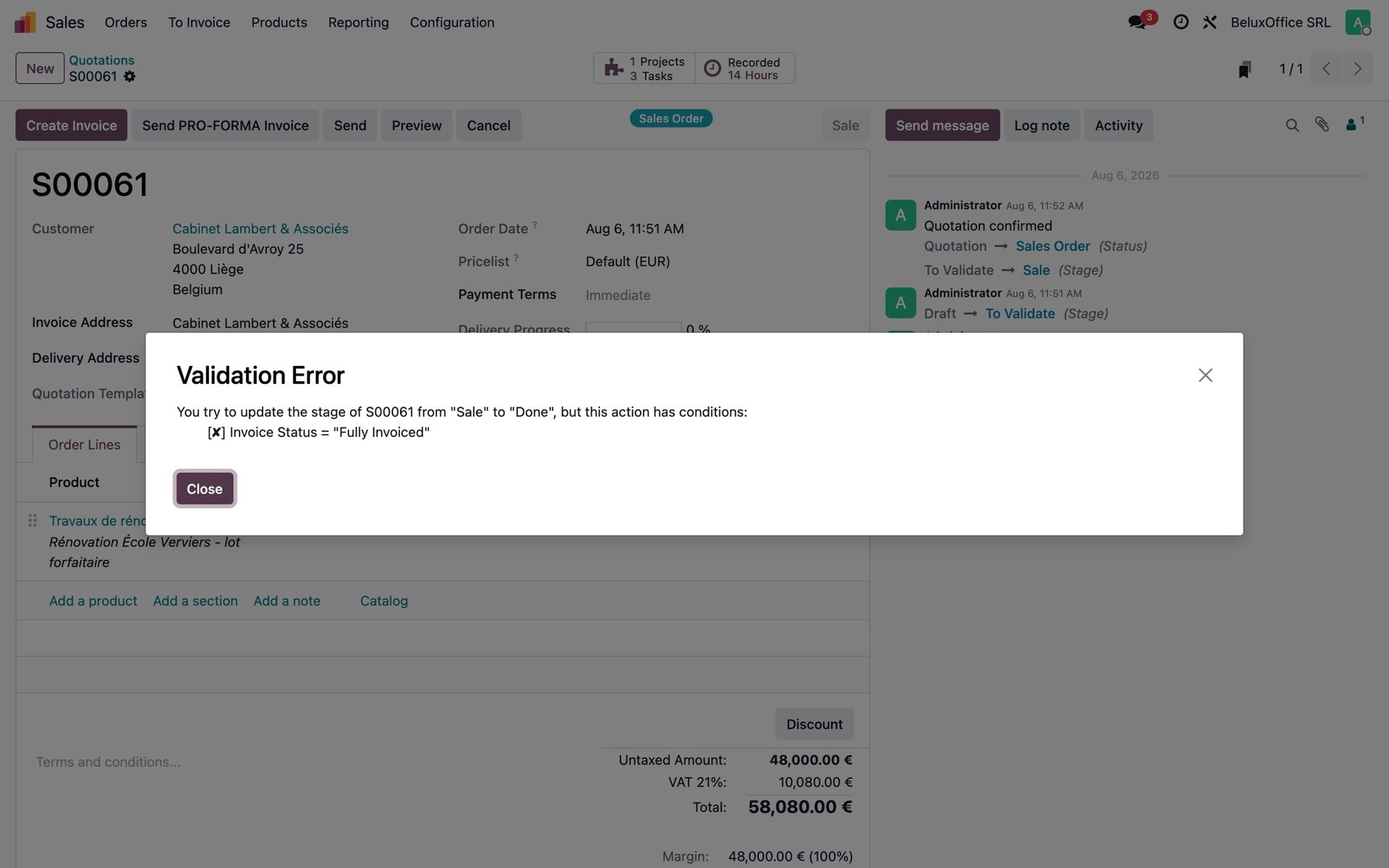
Routing decides where an order goes. Blocking conditions decide whether it can go at all. Typical examples: no quotation is sent to a customer without an email address, no order is confirmed at zero, no order is locked before it is fully invoiced.
When a condition is not met, the action is refused and the message lists each requirement with its status. People read it as a company rule, not as a bug.
One document for the auditor and the newcomer
The configured flow prints as a report: steps in columns, each transition drawn as an arrow with its conditions and the groups allowed to use it. It is the document you put in front of an auditor, a new colleague, or a meeting that needs to agree on who approves what. It is the flow the software actually runs, not a diagram someone has to keep up to date.
Install first, configure later
At installation, the modules reproduce Odoo's standard behaviour, and every existing order gets the step that matches its state. Nothing changes for users until you start configuring. An approval step comes with the installation, switched off: activate it, set the amount, and the approval flow is in place.
Each step also decides where a document appears in the customer portal, so customers see their documents sorted by your real process. A step can send an email when an order reaches it, for example to notify the approver.
Interested?
One call is enough to see what it would change for you.